In an era dominated by technological advancements, the ability to seamlessly control your iPhone from your PC or Mac has become an essential need for many users. One of the trending solutions gaining traction is MirrorTo – a versatile tool that goes beyond conventional screen mirroring. This article aims to delve into the key features, advantages, and step-by-step guides on how to use MirrorTo to control your iPhone from your PC or Mac effortlessly.
Unveiling the Trend: Screen Mirroring and iPhone Remote Control
Before we explore the ins and outs of MirrorTo, let’s address the growing need for efficient screen mirroring and iPhone control. As our reliance on smartphones intensifies, the desire to manage them conveniently from our computers has become paramount. MirrorTo emerges as a solution, offering a user-friendly approach to control your iPhone seamlessly from your PC or Mac.
The Demand for Bigger Screens: MirrorTo in Work and Study Presentations
In the bustling environment of a co-working space or a university library, the need for a larger screen for presentations is a common occurrence. Picture this scene: a professional immersed in preparing a crucial work presentation or a diligent student diligently crafting a project report on their iPhone. As the complexity of their content grows, so does the demand for a more expansive display.
In such scenarios, the limitations of the iPhone screen become apparent. The desire for a bigger canvas to project intricate details, charts, and visuals prompts individuals to seek alternative solutions. This is precisely where MirrorTo steps into the spotlight, seamlessly aligning with the challenges faced by those navigating the realms of work and study.
Imagine the relief when a professional, in the midst of fine-tuning their presentation, discovers the ability to mirror their iPhone screen onto their PC or Mac. With MirrorTo, the confines of a small smartphone screen no longer pose a hindrance to delivering a compelling presentation. Instead, the content effortlessly sprawls across a larger canvas, capturing the attention of the audience and ensuring a more impactful delivery.
Similarly, for the dedicated student working diligently on their project, the ability to mirror their iPhone onto the computer screen provides a transformative experience. Charts become clearer, data is more readable, and the overall process of creating a visually engaging project becomes streamlined. MirrorTo becomes not just a tool but a game-changer in the pursuit of excellence in work and study environments.
Exploring MirrorTo: Key Features and Advantages
MirrorTo distinguishes itself with a myriad of features designed to enhance your iPhone control experience. Here are some key highlights:
- Freely Control Your iPhone from PC/Mac
MirrorTo enables you to mirror your iPhone to your PC or Mac effortlessly, utilizing both Wi-Fi and USB connectivity. This ensures a stable connection, allowing for smooth interaction between your devices.
- Multi-Screen Cast for Enhanced Productivity
Take multitasking to a new level with MirrorTo’s support for casting 3-5 iOS and Android screens on your PC. Whether you’re juggling multiple tasks or collaborating with others, this feature ensures a seamless and efficient experience.
- Full-Screen Interaction: Transform Your iPad into a Second Monitor
MirrorTo goes beyond traditional screen mirroring by allowing you to use your iPad as a second monitor. Enjoy a multi-screen display, providing flexibility and improved productivity in various scenarios.
- Record and Capture Screen: Create Engaging Content
For content creators or those who want to document their activities, MirrorTo offers the ability to record and capture your iOS screen. This feature is invaluable for creating tutorials, capturing gameplay, or documenting any other on-screen activity.
Step-by-Step Guides: How to Use MirrorTo to Control iPhone from PC
Now that we’ve highlighted the exceptional features of MirrorTo, let’s walk through the step-by-step process of using this tool to control your iPhone from your PC or Mac.
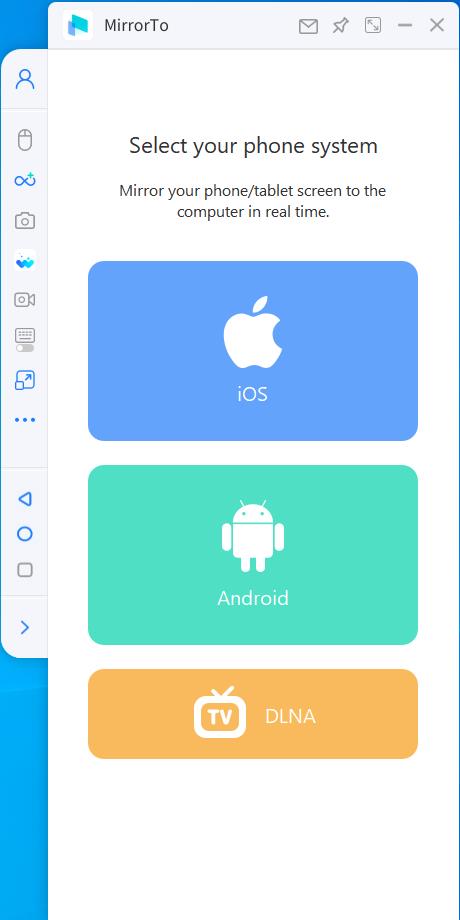
Step 1: Download and Launch MirrorTo on Your PC/Mac
Begin by downloading and launching the MirrorTo app on your computer. Ensure that you have a stable internet connection for optimal performance.
Step 2: Connect iPhone and Computer on the Same Wi-Fi Network
Establish a connection between your iPhone and computer by ensuring they are on the same Wi-Fi network. This is a crucial step for seamless communication between the devices. Or you can connect your iPhone to your Computer with a USB cable.
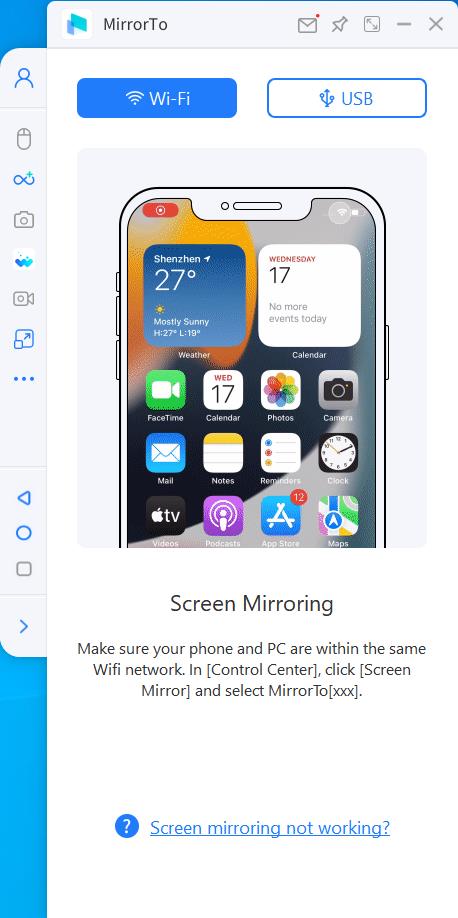
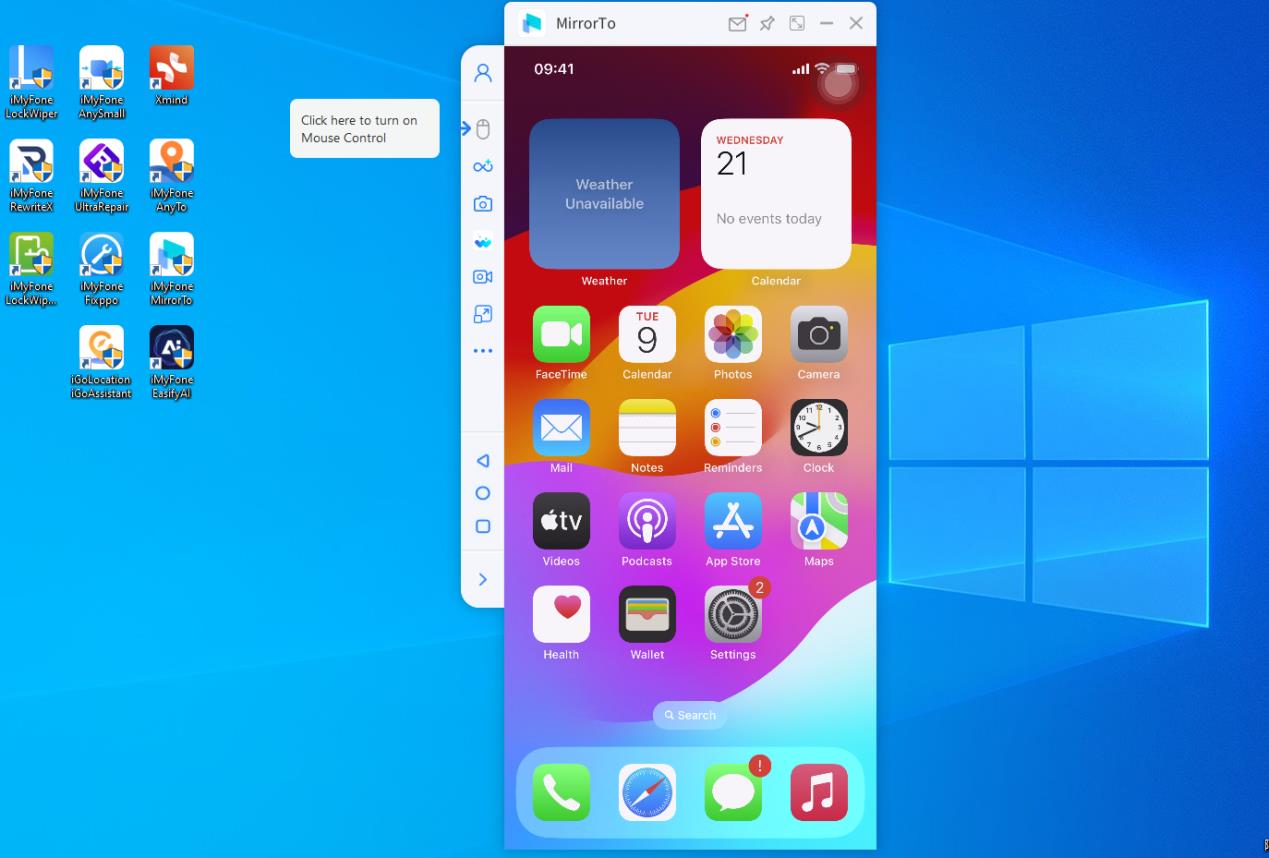
Step 3: Initiate Screen Mirroring on Your iPhone
After connecting, your iPhone screen will seamlessly appear on your PC.
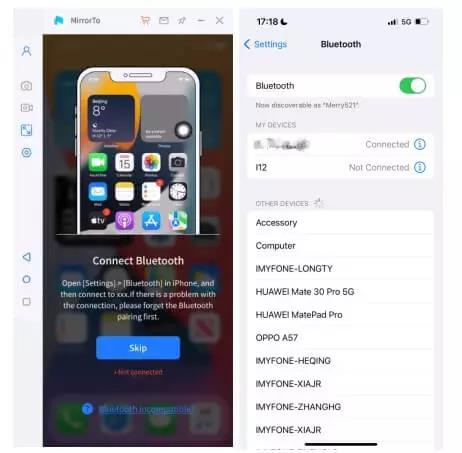
Step 4: Enable Bluetooth Connection
Head to your iPhone’s Settings, enable Bluetooth, and pair it with your computer. This Bluetooth connection is vital for remotely controlling your iPhone from your Macbook or PC.
Step 5: Enjoy Remote Access
Once the Bluetooth connection is established, you can freely control your iPhone from your computer using your mouse. Navigate through your iPhone’s interface effortlessly on your PC or Mac.

The step-by-step guides provided in this article offer a roadmap for individuals to seamlessly integrate MirrorTo into their professional and academic endeavors. From downloading the app to initiating the screen mirroring process, MirrorTo’s user-friendly interface ensures a smooth transition from the limitations of a handheld device to the expansive canvas of a PC or Mac.
FAQs
To ensure a comprehensive understanding of iPhone control using MirrorTo, let’s address some frequently asked questions.
Q1: Is MirrorTo compatible with both PC and Mac?
Yes, MirrorTo is compatible with both PC and Mac, providing a versatile solution for users across different platforms.
Q2: Can I use MirrorTo to control multiple iOS devices simultaneously?
MirrorTo supports multi-screen casting, allowing you to cast 3-5 iOS screens on your PC. This feature enhances productivity and collaboration.
Q3: What if my computer’s Bluetooth doesn’t support screen casting?
If your computer’s Bluetooth doesn’t support screen casting, consider purchasing a USB Bluetooth Dongle 5.0 Adaptor or higher for seamless connectivity.
As we delve into the intricacies of using MirrorTo for iPhone control, it becomes evident that its application extends beyond personal convenience – it becomes a catalyst for elevated presentations, enhanced productivity, and an overall more efficient work and study experience. MirrorTo, positioned as the premier method in 2024 for controlling your iPhone from your PC or Mac, becomes the go-to solution for those striving for excellence in their professional and academic pursuits. Embrace the future of iPhone control with MirrorTo – where practicality meets seamless functionality, transforming the way we work and study.
WATCH TOP VIDEOS FROM NIGERIAN TRIBUNE TV
- Relationship Hangout: Public vs Private Proposals – Which Truly Wins in Love?
- “No” Is a Complete Sentence: Why You Should Stop Feeling Guilty
- Relationship Hangout: Friendship Talk 2025 – How to Be a Good Friend & Big Questions on Friendship
- Police Overpower Armed Robbers in Ibadan After Fierce Struggle