Looking for a quick and easy way to access your Windows, Mac or Linux machine from an Apple device, an Android device or even from another Windows, Mac or Linux machine?
If so, then there is one solution that works really, really well: Chrome Remote Desktop.
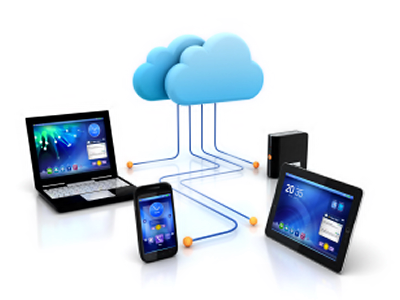
In order to use it, all you need is Google Chrome installed on your device.
After setting everything up, which we will explain below, you can access any of your computers from your device. This means you can remotely control your Windows machine from my iPhone, Nexus 6 and Mac laptop without having to worry about port forwarding, dynamic DNS, different operating systems or anything else.
The great advantage about using Google Chrome is that it takes about 5 minutes to setup and even less than that if you already have Chrome installed on your devices.
Install Chrome Remote Desktop
The first thing we need to do is install Google Chrome itself on your computers. Since Chrome can be installed on Windows, Mac or Linux, it means you can remotely access any of those systems too.
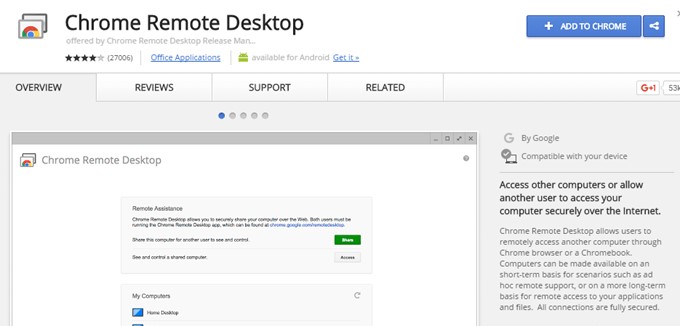
Once you have Chrome installed, you need to install the free Chrome Remote Desktop add-on. Click the Add To Chrome button at the very top right. A popup will appear with the permissions the app needs in order to work properly. Click Add App to continue if you’re OK with the permissions.
At this point, the app should be installed and a new tab should appear where you can see all the apps that have been installed in Chrome. If this tab doesn’t appear, just open a new tab and type in chrome://apps/ in the top address-bar.

You should see a new icon called Chrome Remote Desktop.
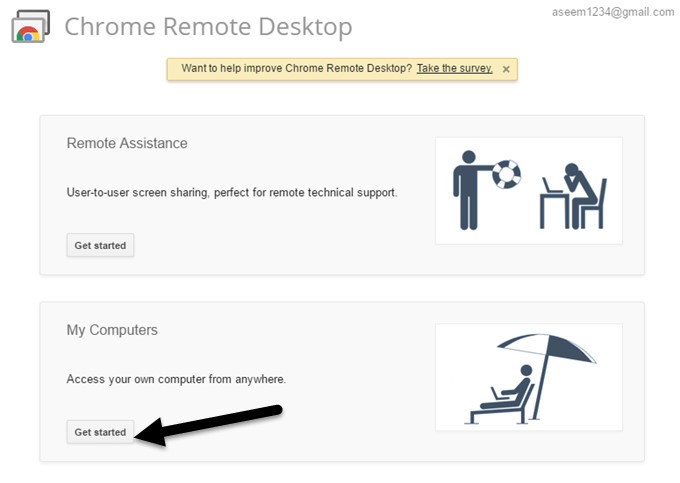
Go ahead and click on that to start the app. In the new window, you’ll see two sections:
Remote Assistance and My Computers.
To start, we need to click the Get Started button under My Computers. If you didn’t already have Chrome installed on your computer, you’ll need to sign in first with your Google account, otherwise the option will be unavailable.
Go ahead and click on the Enable Remote Connections button.

You’ll then get a popup message asking you to install the Chrome Remote Desktop Host Installer program onto your computer. This is basically the remote desktop client that allows each device to remotely access another device.
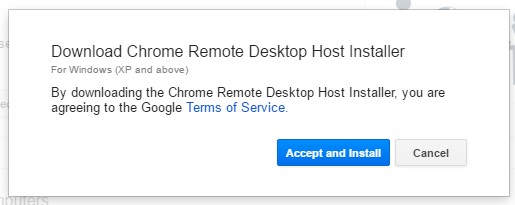
The file will download onto your computer (.MSI for Windows, .DMG for Mac, etc.) and you’ll need to manually run it in order to install the software.
Once you do, you’ll get another window that now asks you to enter a pin code of at least six digits that you will need to use to connect to the computer remotely.
We suggest you use a different code for each computer, rather than the same one.

Click OK and you should get a message stating that remote connections have been enabled for the computer.
When doing this on a Mac, another window will pop up and you will have to enter the pin code again in order to enable remote connections.
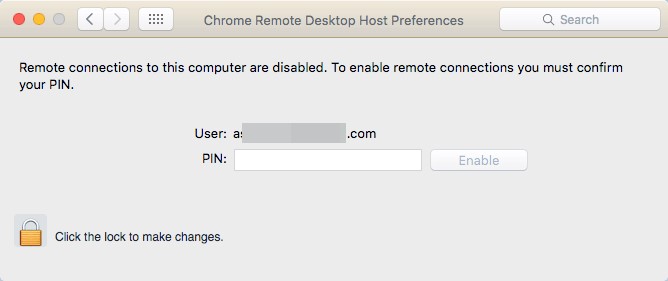
Again, you should go ahead and follow this procedure on all computers you want to be able to access remotely.
Note that you can simply install it on a Mac and Windows machine & access the Mac from Windows or vice versa. If you install the app on your phone, you can access your desktop computers from an Apple or Android device. Unfortunately, the Chrome Remote Desktop app is not available in the Microsoft App store yet.
Connecting Remotely to Your Computers
Now for the fun part! Let’s start by connecting to a desktop computer using an Android device. On your phone, go to the App Store and download the Chrome Remote Desktop app. Here are the links:
Open the app and sign in with your Google account. It’s worth noting that you will need to be signed into Google Chrome on all your devices in order to connect between devices. The app interface is very simplistic and easy to use. It also looks exactly the same on Android and Apple devices.

You should immediately get a list of enabled computers that are logged in using the same Google account. Tap on the computer name and it will ask you for the pin code.

You can also check a box so that it doesn’t ask you for the pin code anymore when connecting from that particular device.
Tap Connect and you should now see the desktop of your computer on your phone or tablet!

You’ll also see an overlay bar at the top with a couple of icons.
The first one is a mouse button that will either be blue or grey (on Apple devices). If it’s blue, that means you can control the actual mouse pointer with your finger. If you tap it, which will turn it grey, then your finger becomes the mouse pointer. On Android, it rotates between a mouse icon and a finger icon.
The keyboard icon will bring up a virtual keyboard, which you can use to type. The little square button will go full-screen and remove the overlay bar so you can see the entire desktop. If you click on the three vertical dots at the far right, you can send the CTRL + ALT + DEL keyboard combo to the desktop.
So how about connecting between desktop computers? That’s really easy also. Just open the Chrome Remote Desktop app on your computer and then click on any computer listed under the My Computers section.
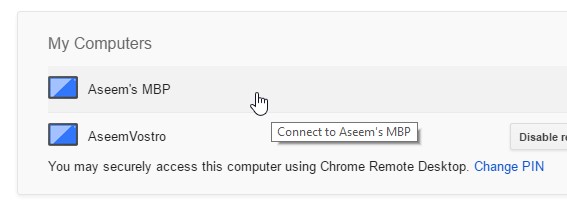
Enter your pin and a new window will appear with the desktop of your remote computer. The great thing about using Chrome, like we mentioned before, is that this works over the Internet and you don’t have to worry about opening or forwarding ports on your router.
From our testing, only one device can connect to a computer at a time. If a second connection comes through, the first one will automatically be disconnected. It’s also worth noting that the resolution of the remote computer is what will be used on the host computer. For example, I connected from my Windows PC with a bigger resolution of 2560×1440 to my Mac computer with a smaller resolution of 1440×900 and I simply get a 1440×900 window when using Chrome Remote Desktop.
Even if I expand it to full screen, the Mac desktop remains at 1440×900 on my Windows machine. If I connect the other way around, the app has two options to help out: Resize desktop to fit and Shrink to fit. The first option changes the resolution on the remote computer and the second option simply resizes the desktop on the host computer.

Overall, for being completely free and giving you the ability to connect to pretty much any computer using so many different devices, Chrome Remote Desktop is a great tool.
Obviously, there are a lot of other options out there that can probably do more than Chrome, but some cost money and others require more complex setups.
For an easy-to-use remote desktop solution that anybody can get working in no time, check out Google’s Chrome Remote Desktop.
WATCH TOP VIDEOS FROM NIGERIAN TRIBUNE TV
- Relationship Hangout: Public vs Private Proposals – Which Truly Wins in Love?
- “No” Is a Complete Sentence: Why You Should Stop Feeling Guilty
- Relationship Hangout: Friendship Talk 2025 – How to Be a Good Friend & Big Questions on Friendship
- Police Overpower Armed Robbers in Ibadan After Fierce Struggle